

If you've ever searched for AI-generated Minecraft builds, you've probably been disappointed. Most tools give you pretty images, concept art that looks great but can't actually be imported into your world. That's not what you need.
You need real schematic files. Files you can load into Minecraft and place block-by-block. This guide shows you how to actually get them.
Why Schematics Matter
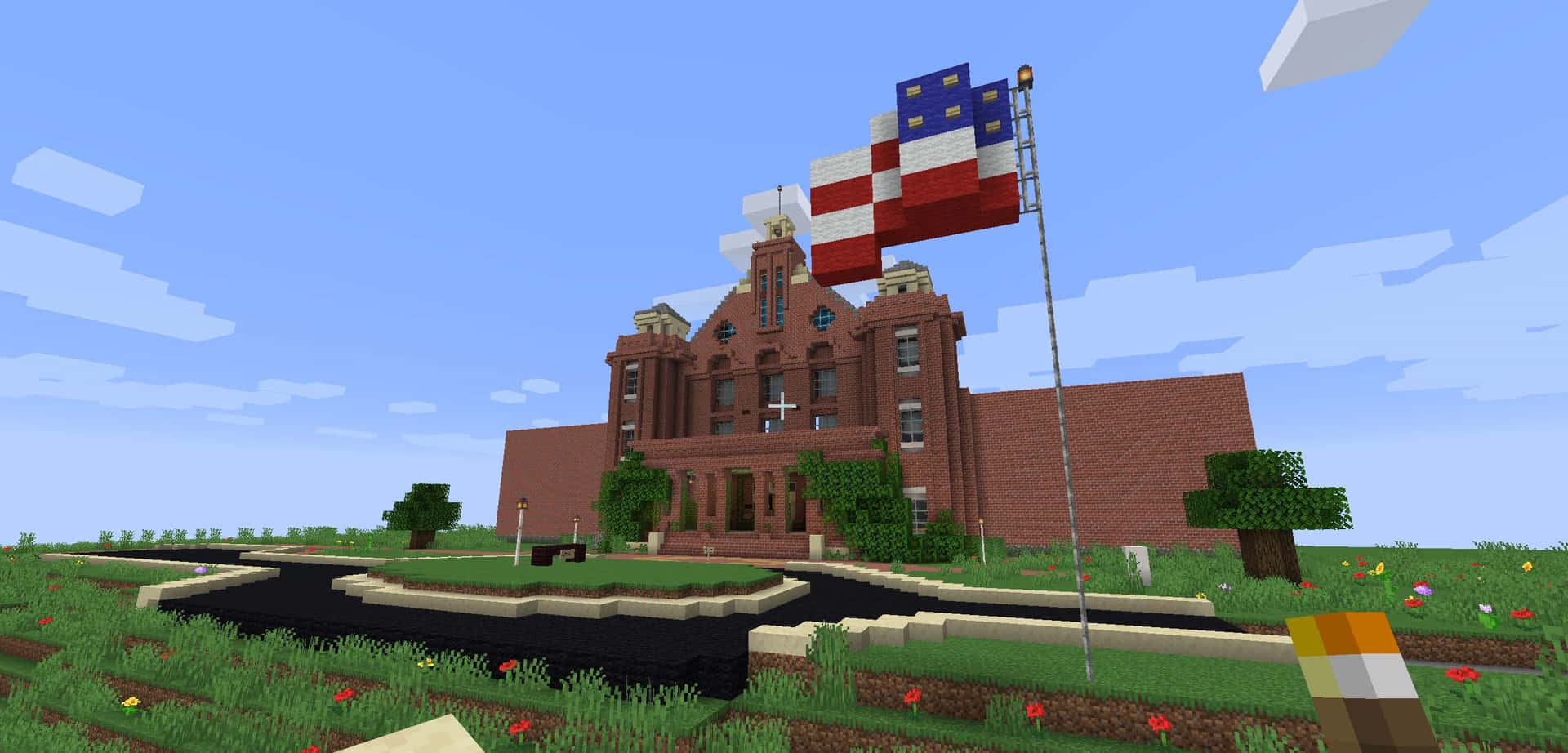
A schematic is a saved structure. It's not a screenshot or a render. It's a file containing every block, its position, and its orientation. When you import a schematic, you get the actual build in your world.
This matters because:
- Screenshots can't be imported. They're just pixels.
- Concept art requires manual recreation. You'd still need to build it block by block.
- Schematics are plug-and-play. Load them with WorldEdit or Litematica and you're done.
If an AI tool gives you an image but no .schem or .schematic file, it's not solving your problem. Tools like BlockGPT output real schematic files you can actually use.
Traditional Ways to Make Schematics
Before AI, creating schematics meant one of two approaches:
Hand Building
The classic method. Open creative mode, place blocks one at a time, then use WorldEdit's //copy and //schematic save commands. This works, but a detailed build can take hours or days.
WorldEdit Copy/Paste
Find an existing build, select it, save it. Faster than building from scratch, but you're limited to structures that already exist. If you want something custom, you're back to hand building.
Both methods require significant time investment. For one-off builds that's fine. For rapid prototyping or large projects, it's a bottleneck.
How AI Changes the Workflow
AI schematic generation flips the process:
Text description → AI processing → Downloadable .schem file
Instead of building first and saving second, you describe what you want and receive a finished schematic. The AI handles block selection, placement, and structure.
This isn't about replacing creativity. It's about removing the tedious translation step between idea and implementation. You still decide what to build. The AI just builds it faster.
Step-by-Step: Generating a Schematic with AI
Here's how the process works with BlockGPT's generator:
1. Write Your Prompt
Be specific. Vague prompts produce vague results.
Weak prompt:
A castle
Strong prompt:
A medieval stone castle with four corner towers, a main gatehouse
with an iron portcullis, and a central keep. Built from stone bricks
and cobblestone with dark oak wood accents.
Include:
- Style (medieval, modern, fantasy, Japanese, etc.)
- Materials (specific block types)
- Key features (towers, windows, doors, decorations)
Check the Gallery for prompt examples that produced great results.
2. Generate the Structure
Submit your prompt and let the AI process it. BlockGPT converts your description into actual block data, not a render, but a real 3D structure made of Minecraft blocks.
Generation time varies by complexity. Simple structures take seconds. Detailed builds with interiors might take longer. Pro users get priority processing for faster results.
3. Export the Schematic
Download the .schem file. This is the portable format that WorldEdit and Litematica understand.
Some tools also offer .schematic (legacy format) or .litematic for Litematica users. Grab whichever format matches your setup.
4. Import to Minecraft
With WorldEdit installed:
//schematic load yourfile
//paste
With Litematica, use the load menu to select your file, then place it as a hologram or paste directly.
That's it. Text to schematic to world. Need more help? Check our How-To Guide for detailed instructions with screenshots.
Common Mistakes to Avoid
Using Image-Only Tools
Many "AI Minecraft" tools generate images, not schematics. They're great for inspiration but useless for actual building. Before using any tool, confirm it outputs .schem files.
Over-Prompting
More words isn't always better. A focused prompt beats a rambling paragraph. Describe the essential features and let the AI fill in the details.
Expecting Perfection
AI-generated schematics are starting points. You might want to tweak materials, adjust proportions, or add personal touches. Think of it as a first draft, not a final product.
When AI Schematics Are Most Useful
AI schematic generation shines in specific scenarios:
- Rapid prototyping: Test ideas quickly before committing to manual builds
- Server decoration: Populate a world with varied structures fast
- Inspiration: Generate options, then refine your favorite
- Learning: Study AI-generated structures to understand building techniques
- Time constraints: When you need a build now, not next week
It's less useful when you want pixel-perfect control from the start or when the building process itself is the goal.
Summary
Real AI schematic generation means:
- Text prompts that produce actual block data
- Downloadable
.schemfiles, not just images - Direct import via WorldEdit or Litematica
- Significant time savings for structure creation
The key is using tools that output real schematics, not renders, not concept art, not "AI-enhanced" images.
Next Steps
- Try the Generator - Create your first schematic free
- Browse the Gallery - See what others have built
- Read the How-To Guide - Step-by-step with screenshots
- View Pricing - Up to 200 builds a month on Pro
Related Reading
- Best AI Generated Minecraft Builds - See impressive builds from the community
- How to Turn AI Builds Into Usable Minecraft Worlds - Make your schematics gameplay-ready
- Getting Started with BlockGPT - New to BlockGPT? Start here
Ready to try it yourself? Generate your first Minecraft schematic with BlockGPT. Describe what you want, download the file, and paste it into your world.